


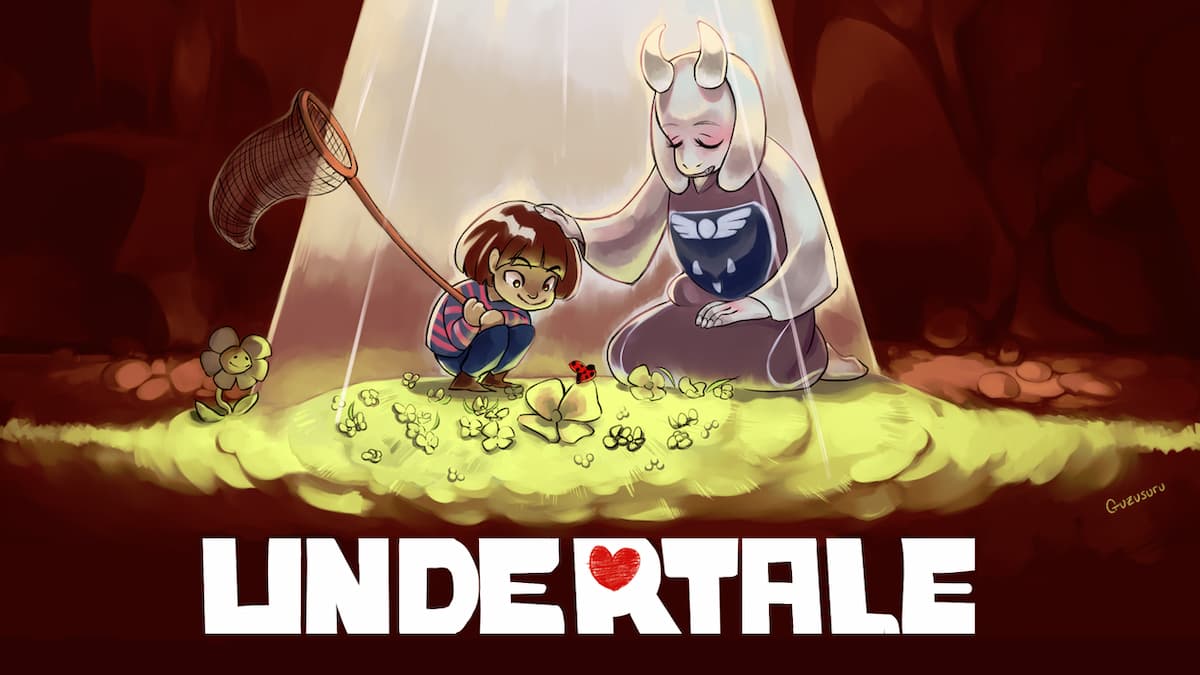
I still remember the first time I launched Undertale. Like most people, I was greeted by a tiny 640×480 window that felt more like a desktop icon than a legendary RPG. It turns out that Toby Fox built the game on the GameMaker Studio engine, which locks the game into a 4:3 windowed mode by default. While this definitely fits the retro aesthetic, it can be a real pain if you want to actually see what you are doing during a tough boss fight.
If you are trying to figure out how to stretch that window to fill your monitor without making the pixel art look like a blurry mess, I have spent a lot of time digging into the math and the meta-lore to help you out.
Getting Undertale to Fill Your Screen on Windows
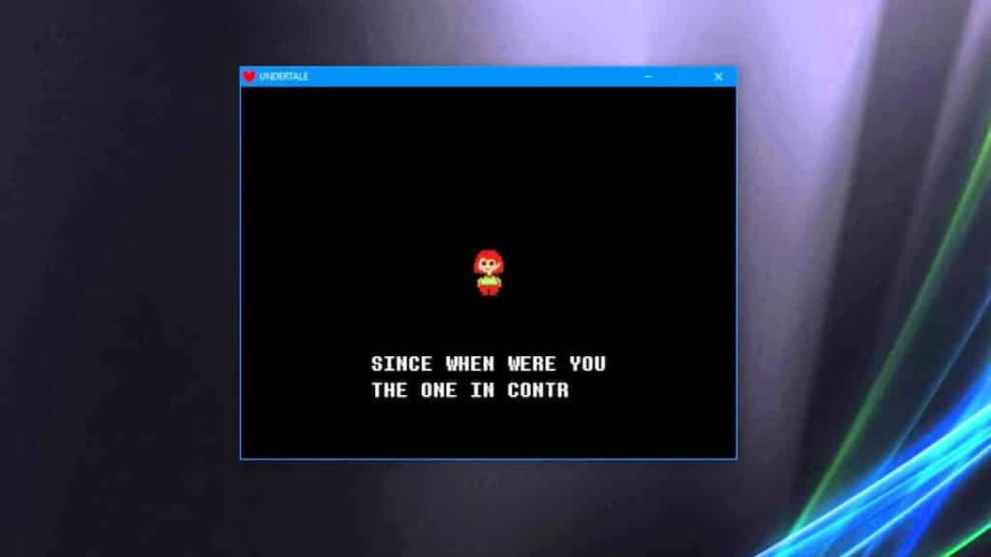
On a standard Windows PC, getting into fullscreen on Undertale is usually pretty simple, but there are a few quirks I have run into depending on the hardware.
- The F4 Key: This is the official way to toggle fullscreen. If you press it, the game should instantly expand.
- Alt plus Enter: This is my go-to universal shortcut. It works for almost any GameMaker title and is often more reliable than the function keys if your keyboard is acting up.
- The Fn Key: If you are playing on a laptop like an HP or a Dell, your F4 key might be bound to your screen brightness or a project menu. In those cases, I always have to hold the Fn key while hitting F4 to make it work.
If you find that the game flashes and then goes back to a window, you might want to try running the game as an administrator. I have found that background overlays from programs like Discord can sometimes fight Undertale for control of the screen.
The Secret Four Froggits Logic
One of the things I love most about this game is that it actually teaches you how to change the settings through the characters. In the Ruins, you will run into a Froggit who tells you that F4 stands for four frogs.
- There are three frogs visible in the room.
- The fourth frog is actually an ant-sized frog hidden in a crack in the back wall.
- If you find that tiny frog, it effectively acts as a reward for being curious about your technical settings.
It is a great example of how the game rewards you for paying attention to the small stuff, even if that small stuff is just a keyboard shortcut.
Why Your Mac Hates the F4 Key and How to Fix It
Mac users usually have a harder time because Apple loves to use the F4 key for the Launchpad. If you just tap F4, you will probably see your apps instead of a full-screen Underground.
- Hold Fn and press F4: This tells macOS to ignore the system shortcut and give the command directly to the game.
- Control plus Command plus F: This is the native macOS shortcut for fullscreen. It usually works perfectly and keeps the aspect ratio intact.
- The View Menu: If all else fails, you can move your mouse to the top of the screen and select Enter Full Screen from the View menu.
I should mention that the 64-bit update in February 2020 really helped Mac stability, so make sure your game is updated if you are experiencing crashes when you try to toggle the display.
Mastering the Math of Integer Scaling for 1080p and 1440p
If you just stretch the game to fit your screen, it might look a bit fuzzy. This happens because the game’s native resolution is 640×480. To keep the pixels sharp, you want to use something called integer scaling. This means the game only scales by whole numbers like 2x or 3x.
- 1080p Monitors: A 1080p screen has 1080 vertical pixels. If you divide 1080 by the game’s 480 pixels, you get 2.25. Since the game can only scale by 2x to stay sharp, you will end up with 120 pixels of black space at the top and bottom.
- 1440p Monitors: These are the holy grail for Undertale. 1440 divided by 480 is exactly 3. This means the game can scale to a perfect 3x size with zero wasted pixels vertically.
- 4K Monitors: These also work great because they use a 4.5x scale, but you can lock it to a crisp 4x integer scale for a massive, clear image.
Whenever I play on a wide monitor, I make sure to enable Maintain Aspect Ratio in my GPU settings. This ensures the game stays in its 4:3 shape with black bars on the sides, which is called pillarboxing. Without this, the game stretches horizontally, and Frisk ends up looking a lot wider than Toby Fox intended.
Steam Deck and Linux Display Optimization
Playing Undertale on the Steam Deck is an awesome experience, but the 800p screen needs a little love to look right. The Steam Deck uses a compositor called Gamescope that gives you some cool tools.
- Integer Scaling: You can turn this on in the performance menu to keep the 640×480 resolution looking sharp on the handheld screen.
- FSR 1.0: If you find the integer scale too small, FSR can sharpen the image while it upscales, though it can sometimes look a bit softer than a raw pixel-perfect scale.
I have noticed that using these tools can actually save a bit of battery life too, since the system is not working as hard to render at native resolutions.
How the Game Breaks the Fourth Wall with Window Changes
I generally prefer playing in a window for specific parts of the story because the game actually uses the window title to talk to you. If you are in fullscreen, you might miss these meta-narrative moments.
- Floweytale: During the Omega Flowey sequence, the window title changes from UNDERTALE to Floweytale. On PC, it even flickers with random alphanumeric strings.
- The Musical: When Mettaton starts his big operatic performance, the window title updates to read UNDERTALE the Musical.
- Genocide Consequences: If you finish a Genocide run, the window title might go completely blank, signifying that the world has been erased.
I find that windowed mode makes these moments feel much more personal, like the game is actually haunting my computer rather than just being a program I am running.
Surviving the Sans Fight Screen Shake
If you have ever made it to the Sans fight, you know it is brutal. One technical detail people often overlook is the screen shake. Sans uses telekinesis to slam your soul against the walls, which causes a high-frequency vibration.
In my experience, this effect is much more intense in fullscreen on a large monitor. The entire screen shakes based on a timer-linked coordinate system. If you are prone to motion sickness, I actually recommend switching back to windowed mode for this fight. It makes the shaking much more manageable and might actually help you dodge those Gaster Blasters a little easier.
Fixing Common Technical Glitches and Patch 1.08
If your game is running slowly in fullscreen, you are probably dealing with a Windows 10 compatibility issue. Back in 2018, the v1.08 patch was released specifically to fix a bug where the game would drop frames on modern PCs.
- Check your version: If you are on Steam, you are likely fine, but older DRM-free versions might still have this lag.
- Multi-monitor setups: I have seen the game get confused if you have two screens with different resolutions. Setting the game to your primary monitor before hitting F4 usually fixes the jumpy resolution.
- Hex Editing: For the really brave, you can technically use a tool like HxD to edit the data.win file and force custom resolutions, but be careful. If you mess with the viewport too much, the game might trigger a Dogcheck and show you a sleeping dog that prevents you from playing.
At the end of the day, Undertale is a game meant to be experienced however you feel most comfortable. Whether you want a sharp 1440p integer scale or a small window that breaks the fourth wall, I hope this guide helps you find the perfect setup, which is always complimented by cute toys.












Updated: Apr 8, 2026 01:30 pm