


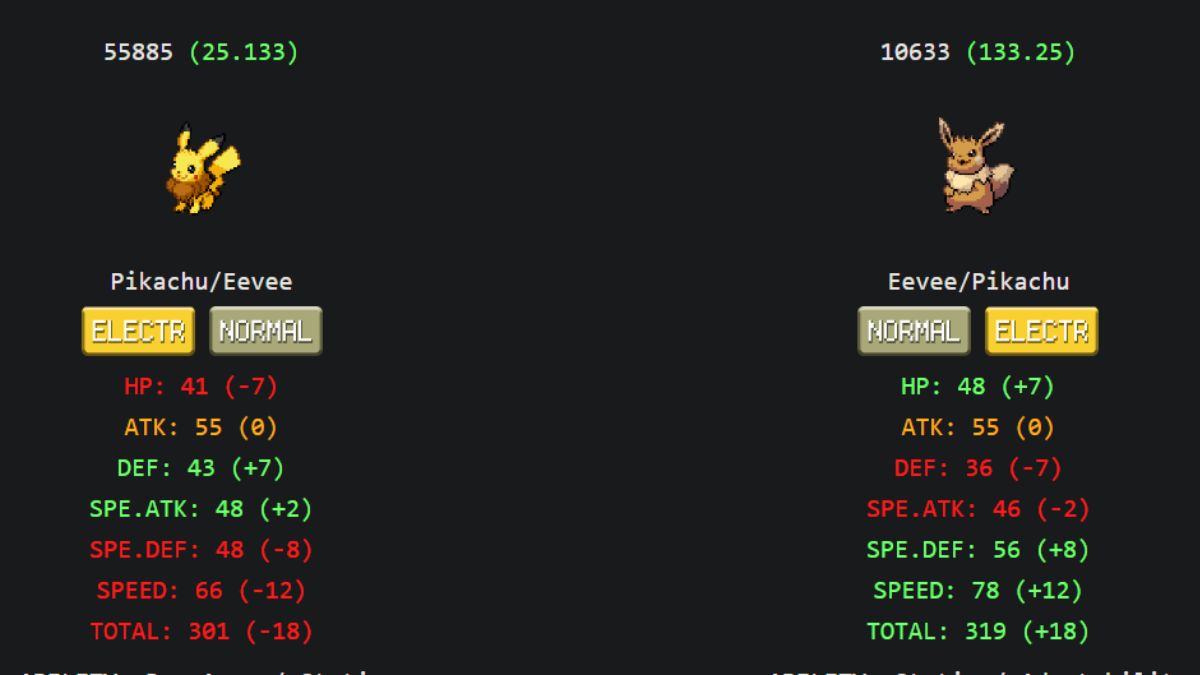
The most accurate tool to calculate stat distributions and movesets for the active v6.8 game engine is the community-maintained Infinite Fusion Dex. This utility automatically accounts for dynamic type rules and custom artwork overrides, completely bypassing the broken calculations found in outdated legacy calculators.
Accessing Up to Date Fusion Stats and Team Builders
To calculate precise, patch-compliant hybrid statistics and movesets without local overhead, players must utilize community-verified platforms instead of legacy search tools.
- Navigate the web browser to infinitefusiondex.com.
- Enter the head and body species into the search bar to output immediate typing, abilities, weaknesses, and stat spreads.
- Use fusiondex.org as an alternative visual tool to browse custom artwork and alternative sprites.
- Ensure calculations match the dynamic v6.0 rule system where fusions avoid type redundancy. For instance, an Umbreon head and Gyarados body fusion calculates as a Dark/Flying type rather than Water/Dark.
Local Manual Sprite Override Pipeline
Manually importing custom artwork or specific designs from the community requires strict formatting and directory placement to bypass the game’s modern sprite sheets.
- Ensure the artwork is saved as a transparent PNG file.
- Verify the canvas resolution is exactly 288×288 pixels. For clean pixel art, create the image in a 96×96 format and scale it up by 300% using nearest-neighbor scaling to maintain sharp pixel boundaries.
- Name the file using the National Pokédex numbering convention of [head_pokedex_number].[body_pokedex_number].png. For example, fusing Aegislash (Head #329) and Goodra (Body #446) requires the file name 329.446.png.
- Move the completed file into the local game folder path: Graphics/CustomBattlers/Sprites to import.
- Execute the game.exe executable to launch the game client.
- Select the option to Replace All the old sprites with the new ones when prompted by the client startup interface.
- Open Pokédex entries in the game, highlight the targeted Pokémon, select the Sprite Tab, and confirm the custom asset as the active battle design.
Local Save Files and Core Requirements
To back up data or migrate save files between game versions, players must navigate through specific Windows directories. The requirements for file paths, coordinates, and software dependencies depend heavily on the installed patch version.
Player profiles, save directories, and system settings utilize the exact computer configurations and environmental landmarks listed here.
| Component | Engine Version | Exact Target Location or Value |
|---|---|---|
| Save Data Path | Modern Engine (v5.0+) | C:\Users%USERNAME%\AppData\Roaming\infinitefusion\Game.rxdata |
| Save Data Path | Legacy Engine (Pre-5.0) | C:\Users%USERNAME%\Saved Games\Pokémon Infinite Fusion\Game.rxdata |
| Hidden Ability NPC | Game Version 6.x | Violet City near the Central Market |
| Settings Directory | Client Installation | \InfiniteFusion\Data\Scripts |
| Sprite Dimension | Canvas Resolution | 288×288 Pixels (Transparent PNG) |
Unlocking Hidden Abilities and Custom Settings
Accessing hidden abilities requires completing a specific environmental questline.
- Travel directly to Violet City.
- Interact with the elderly female NPC located in the residential sector near the central market.
- Note the route designated by the NPC, as she triggers a temporary spawn table swap on a randomized route.
- Navigate immediately to the specified route, equip the Poke Radar, and hunt the tall grass to encounter wild hidden ability Pokémon.
To change core gameplay parameters like the native shiny encounter frequency, navigate to \InfiniteFusion\Data\Scripts and open the settings files: 001_Settings, DownloadedSettings, and the file named 001_Pokemon located inside the subfolder 014_Pokemon in a standard text editor. Search for the SHINY_CHANCE integer value and adjust it to change the encounter probability, saving the files before launching game.exe.
Stat Calculation Formula
The standard engine formula calculates physical stats (Attack, Defense, Speed) and special stats (HP, Special Attack, Special Defense) using a weighted distribution:
Stat = (2 × Dominant + Recessive) / 3
This represents the math used to weigh the dominant parent (body for physical, head for special) at two-thirds and the recessive parent at one-third.
Installing the Computational Tracker Extension
Integrating a live, overlay-compatible tracker for emulator runs requires loading the Aegide fusion engine as an offline calculator extension.
- Download the offline community sprite pack (approximately 350 MB) to act as your local image repository.
- Extract the ZIP folder and move the CustomBattlers directory to the path: [YOUR_TRACKER_FOLDER]/extensions/CustomBattlers/.
- Download the InfiniteFusion.lua script from the official tracker GitHub repository and place it inside: [YOUR_TRACKER_FOLDER]/extensions/.
- Launch the emulator tracker interface, select the gear icon to open settings, and click the Extensions button.
- Toggle the setting to Allow custom code to run.
- Click the Install New button at the bottom of the interface to initialize and enable the Infinite Fusion Calculator extension.
Official Sprite Submission Pipeline
Artists seeking to officially integrate their fusions into the global game database must complete a structured pipeline within the official Discord server.
- Design the custom sprite on a 96×96 pixel canvas with a transparent background, ensuring it faces left and uses the Black and White lighting style.
- Scale the finished artwork up to 288×288 pixels using nearest-neighbor scaling.
- Join the official community Discord and upload three original fusion designs to the #spritework channel.
- Execute the Discord slash command /feedbackpls to request official feedback if no responses occur.
- Navigate to the #apply-for-spriter channel and click the Apply for the Spriter role! button to open a private application thread.
- Post the three finalized sprites inside the private thread for verification by a Sprite Manager.
- Once approved, post new creations directly to the #sprite-gallery channel to auto-sync your sprites with the global GitLab servers and monthly download packages.







Updated: Jul 22, 2026 03:34 pm