


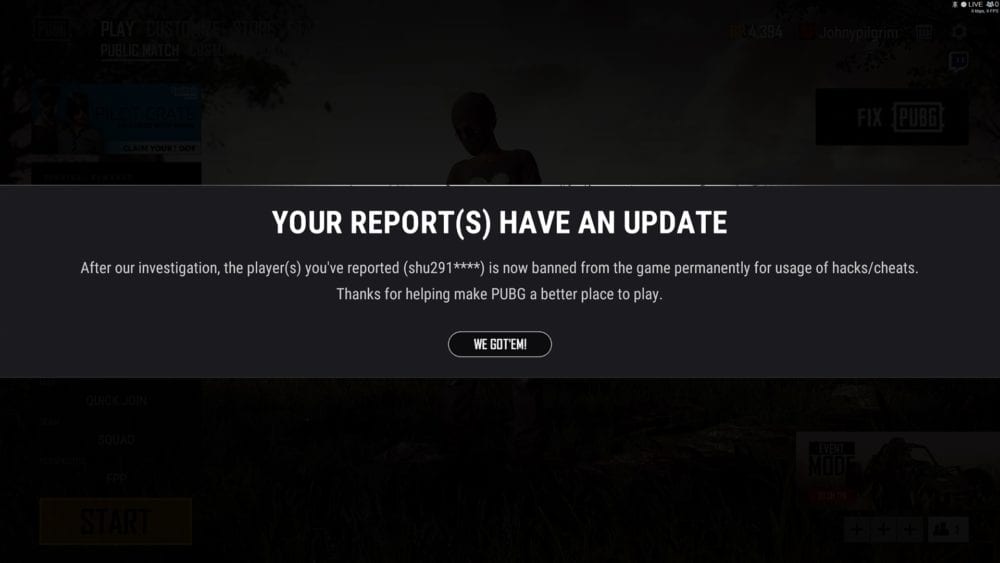
To report a player in PUBG, open the scoreboard or match summary screen during or after a match, highlight their name, and select the report button to submit a violation category. If you miss this window, you can report players retroactively through the PC replay system, the PUBG Mobile friends menu, or via official support portals and Discord, the same anti-cheat pipeline PUBG’s development team built out to combat cheaters after the game’s early rise in popularity.
PC Live Match and Arcade Reporting
In active PC matchmaking, the fastest way to flag an offender is directly through the live match interface. While in a match, press the Tab key to open the interactive player list. Left-click on the target player’s name to display the interaction menu, select the Report button, choose the specific violation categories, and click submit.
In Team Deathmatch or other Arcade modes, the traditional spectator phase and results screen are unavailable due to the rapid respawn cycle. To report an enemy player in these modes, press R immediately during the post-death respawn window. For teammates in Arcade modes, press Escape to access the system menu and look for the player panels in the bottom-right corner. A dedicated megaphone icon sits directly next to each teammate’s name, allowing for an immediate submission.
PC Replay Retroactive Reporting
If a suspicious player was not reported during the live match, the built-in 3D replay database on PC allows for retrospective reporting. This tool must be active in the client settings prior to the match to capture gameplay files.
- Go to the main game lobby screen, select Career at the top of the screen, and click the Replays sub-tab.
- Choose the target match from the list and select Play to load the 3D replay.
- Press J on the keyboard once the replay loads to display the playback timeline interface.
- Press M to display the tactical overhead map, then use the mouse scroll wheel to zoom in on the target engagement zone.
- Click on the suspected player’s nameplate or map circle to bind the camera.
- Press V to lock the camera directly into their first-person perspective, or press C to bind the camera to a third-person follow-view.
- Press Tab to display the active player list on screen and right-click the suspect’s name directly from this menu to trigger the Report button.
- Alternatively, look at the bottom-right side of the timeline overlay next to the Edit tab and click the Report button to select the specific cheat categories.
The retroactive replay reporting system only packages and records the final 60 seconds of game telemetry. For the report to be viable, the submission must be sent immediately following the observed rule violation.
Console Scoreboard and Ticket Process
Console players on Xbox and PlayStation can report directly during active games using physical gamepad inputs. Press the Options button on PlayStation or the Menu button on Xbox to call up the scoreboard screen. Use the D-pad to scroll and highlight the offending gamertag, press Cross on PlayStation or A on Xbox to open the contextual interaction options, and select Report.
Completing retroactive reports on PlayStation or Xbox requires a linked KRAFTON ID, which is particularly useful if active console cross-platform play configurations are enabled.
- Open a web browser, go to accounts.krafton.com, and log in with your credentials.
- Navigate to the Linked Accounts section and connect your Xbox or PlayStation network profile.
- Go to the official PUBG support site, select Reports and Restrictions, and click Submit a Ticket.
- Fill in the required fields with the target’s exact gamertag, the date of the incident, and a video clip under the site’s file size limit.
Mobile Leaderboard and Add Friend Searches
PUBG Mobile utilizes its own customized interfaces for submitting cheater reports to its Ban Pan review backend. Tapping the Leaderboard icon during a live match allows players to select any player’s profile avatar, tap the three-line hamburger icon on the top-left of their profile overlay, and select Report.
If the match has ended, the Results Screen features a Report button in the bottom-left corner that lets players quickly report teammates or enemies. For teammates from a previously closed match, open the Friends tab on the left side of the main lobby, select the clock-like Recent Teammates icon, tap the suspect’s avatar, select the top-left hamburger icon, and select Report.
If the suspect is not on the friend list and the post-match screen has already closed, players can search for them manually:
- Tap the Friends tab on the main lobby screen and go to the Add Friend menu.
- Search for the suspect using their exact character nickname or unique numerical ID.
- Tap their avatar to enter their profile data page.
- Look at the panel on the right side of their profile and tap Tier Overview.
- Tap the Report button situated in the bottom-right corner of the screen.
Players can also track the status of these reports using the built-in tracker. Tap the arrow in the lower-right corner of the Main Menu and select BAN on the right side of the page to enter the Security Zone. Tapping Questions on the left side of this page displays the reported players, the exact time of the report, and the real-time outcome of the investigation.
Chat Moderation and Block Lists
For immediate relief from text spam or harassment inside the active game chat, players can block offenders instantly. This prevents them from sending any future invites or direct communications.
- Open the Chat box and tap the offending player’s profile picture to bring up the Player Action menu.
- Tap Report Player to flag their chat logs directly to the content moderation filters.
- Tap Block Player to instantly place them onto the Black List, then click OK on the confirmation pop-up.
To manage these restrictions later, tap the Friends tab in the main lobby, and select Black List in the top-right corner. While blocking a player removes them from the friend list and halts communications, matchmaking is dictated by overall queue populations. If there are few players active on a specific platform, server, or game mode, the system may override the block list and match the blocked user into the same game session.
Discord Manual Ticket System
For high-priority cheating reports that include clear video evidence, PUBG offers a manual-review channel via Discord that bypasses in-game queues, part of the same broader crackdown that once saw thousands of cheaters banned in a single day during PUBG’s early Battlegrounds era. This channel routes evidence directly to the game’s Anti-Cheat team for verification. Join the official community server for PC/Console or Mobile and open a support ticket under the dedicated anti-cheat or support channel.
The ticket bot will prompt players to fill out several mandatory fields, which must include:
- The suspect’s exact in-game name.
- The target platform (Steam, PlayStation, or Xbox).
- A direct URL link to HD video evidence showing the violation.
- The specific type of cheat observed.
This system provides direct verification, and players can expect a response confirming whether a ban was applied within a few days. Mobile players with additional video or screenshot evidence can also use a dedicated web form to submit reports directly to the anti-cheat team.
Platform Reporting Inputs and Setup Requirements
| Platform or Mode | System Target | Primary Input Trigger | Setup Prerequisite |
|---|---|---|---|
| PC Live Match | Interactive Scoreboard | Tab Key + Left Click | Use mouse or certified controller |
| PC Replay System | 3D Replay Controls | J Key (Timeline) / M Key (Map) | Replay Capturing enabled in game options |
| Arcade and TDM | Death Respawn Window | R Key | Active respawn countdown phase |
| PlayStation | Gamepad Scoreboard | Options button + Cross | Natively linked KRAFTON ID |
| Xbox | Gamepad Scoreboard | Menu button + A | Natively linked KRAFTON ID |
| Mobile Chat | Chat Moderation | Tap Chat Avatar | — |












Updated: Jul 10, 2026 03:09 pm