


I have been there before, sitting with a laptop that sounds like a jet engine or a phone that is completely out of storage space, just wanting to jump into a quick game of Brookhaven with my friends. It is frustrating when you cannot install the official app, but I found a workaround that changed everything for me. You can actually play Roblox directly in your web browser using a service called Now.gg.
I have spent a lot of time testing this platform on everything from old Chromebooks to budget smartphones, and I want to share my personal experience on how to get the most out of it. Whether you are dealing with hardware limits or trying to bypass a strict school firewall, this is how I make it happen.
What is Now.gg and how does it work?
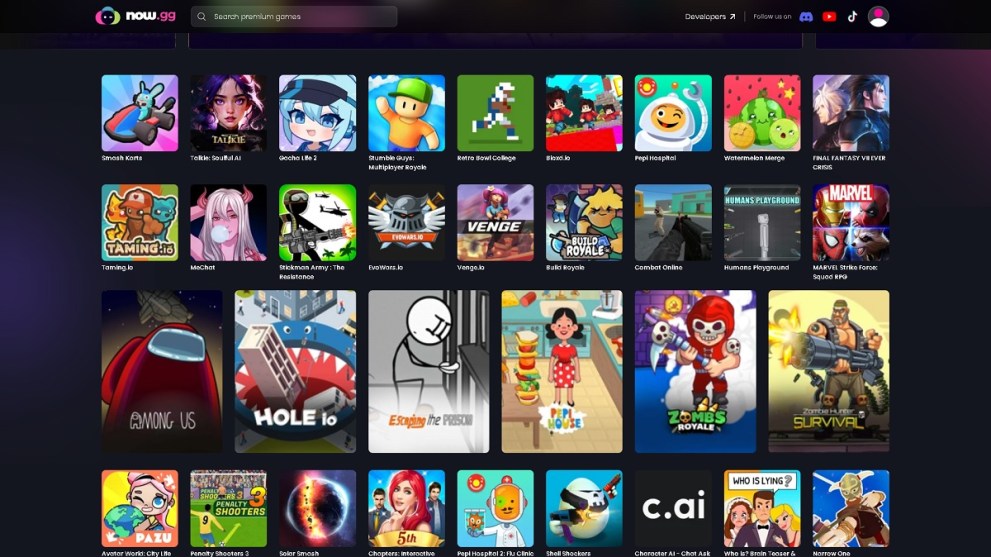
To put it simply, Now.gg is a free cloud gaming service. Instead of your computer or phone doing all the hard work to render those blocky worlds, a powerful server somewhere else does it for you. It then streams the video of the game directly to your browser, almost like a Netflix show that you can control.
I prefer this method for a few reasons:
- It requires zero storage space on my device.
- I do not have to wait for those massive 2GB updates to finish downloading.
- It lets me play on devices that Roblox normally does not support, like Linux machines or managed school laptops.
- The battery life on my phone lasts way longer because it is only streaming video instead of running a complex game engine.
How I play Roblox on PC using Now.gg

Getting started on a computer is incredibly easy. I usually have a game running in less than a minute. Here are the steps I follow to get it working perfectly:
- I head over to the Roblox page on the Now.gg website.
- I click the button that says Play in Browser.
- I wait for the initialization process to finish. If I am playing during peak hours, like right after school, I sometimes have to wait in a queue for about 5 to 10 minutes.
- Once the login screen appears, I enter my standard Roblox credentials. I always make sure I have two-factor authentication turned on for my account, as I am signing in through a third-party interface.
- After I am in, I hit F11 to go into fullscreen mode. This is a huge tip because it locks my mouse cursor inside the game window, which is essential if I am playing something competitive like RIVALS.
Playing Roblox on mobile devices without the app
My phone is always full of photos and videos, so I rarely have room for the actual Roblox app. Using the browser version is my secret weapon. The process is almost identical to the PC version:
- I open up Chrome or Safari on my phone and visit the Now.gg site.
- I search for Roblox and select the Play in Browser option.
- Since Now.gg streams the mobile version of the game, my touch controls work exactly like they would in the app.
- I have noticed that using a 5GHz Wi-Fi connection is a must here. If I stay on a 2.4GHz connection or a weak LTE signal, the input lag makes it almost impossible to play.
My secrets for unblocking Roblox at school or work
One of the most common reasons I see people using Now.gg is to get around school filters. Most school networks block the official Roblox domain, but they often forget to block the cloud streaming servers. If you are stuck behind a firewall, here is what I recommend:
- I always try using Incognito or Private mode first. Many basic filters rely on tracking your cookies, and this can sometimes slip right past them.
- If the main site is blocked, I have found that using a mobile hotspot from my phone is the most reliable way to bypass the school network entirely.
- I have also experimented with the GitHub loophole, where you can sometimes use a sign-in window to access an unrestricted browser, but that is a bit more technical.
- You can also look into using a reputable VPN extension if your browser allows it, which can help mask your traffic from the network administrator.
Just remember to be smart about it and only play during your breaks. If you run into technical issues while trying to get online, you might find my guide on fixing Error Code 529 helpful for getting back into the action.
How I optimize my browser for a lag-free experience
Cloud gaming lives and dies by your connection and browser settings. If I notice my game is stuttering, I go through this quick checklist to fix it:
- I enable Hardware Acceleration in my Chrome settings. This lets my computer use its graphics card to decode the video stream, which makes everything feel much smoother.
- I go to chrome://flags and enable GPU rasterization. I have found this reduces input lag significantly when I am moving my character around.
- I close every other tab in my browser. Roblox on Now.gg is very memory-intensive, and having Discord or YouTube open in the background will definitely cause lag.
- I try to use the latest version of Chrome. In my testing, Chrome 120 and newer have the best performance for WebAssembly, which is the technology Now.gg uses to run.
Earning free rewards with NowBux and Prime
Recently, I have started taking advantage of the new economy features on the platform. If you are a desktop user in the US, you can actually earn a currency called NowBux just by playing your favorite games.
- I complete daily quests, like playing a specific game for 20 minutes, to earn small amounts of NowBux.
- I can redeem these credits for actual Roblox gift cards to buy new items for my avatar.
- If I am tired of the ads that pop up between sessions, I sometimes use Now.gg Prime. It costs about 4.99 per month and removes all the interruptions.
- The Prime sub also gives me 500 NowBux every month, so it basically pays for itself if I am already planning to buy Robux anyway.
What are the best games to play on the cloud?
Not every game works perfectly on a browser. I have found that high-speed shooters can sometimes feel a bit floaty because of the slight delay. However, these are my top picks for the best browser-based experience:
- Brookhaven RP is perfect because it is all about social interaction and does not require pixel-perfect timing.
- Blox Fruits works surprisingly well, and I love being able to check on my progress during a quick break. If you are looking for an edge, you should look at all the codes to see what freebies are currently available.
- Adopt Me! is another great choice because the trading and pet care mechanics are very cloud-friendly.
- If you want something more action-heavy, I recommend checking out the One Fruit Simulator codes to get a head start in that world.
Common problems I have solved
Even with a great setup, things can go wrong. Here is how I handle the most common issues:
- If the screen is stuck at 99 percent while loading, I usually just clear my browser cache and cookies for the last 24 hours. That fixes it for me nine times out of ten.
- If I see a black screen on my phone, I check to see if I have a VPN or an ad-blocker running that might be interfering with the video stream.
- If my mouse is drifting or feeling slow, I go into my mouse settings and lower the polling rate to 125Hz. Browser-based games sometimes struggle with high-end gaming mice that have very fast refresh rates.
It takes some time getting used to it, but that’s how you play Roblox games in your browser, using Now.gg!









Updated: Mar 31, 2026 02:56 pm