


If you’re looking to get the feng shui just right in your inZOI house, then you’re going to need to perfect the placement of your furniture. That can be a little tricky at times due to the camera angle, but in this guide, I’ll explain the basic and advanced methods to rotate furniture in inZOI.
With regard to building in inZOI, a fundamental need in personalizing your world and living space is the ability to place furniture and objects exactly where you want them. Learning how to manipulate your surroundings early on will make creation and upkeep easier in the future.
Basic Furniture Rotation in inZOI
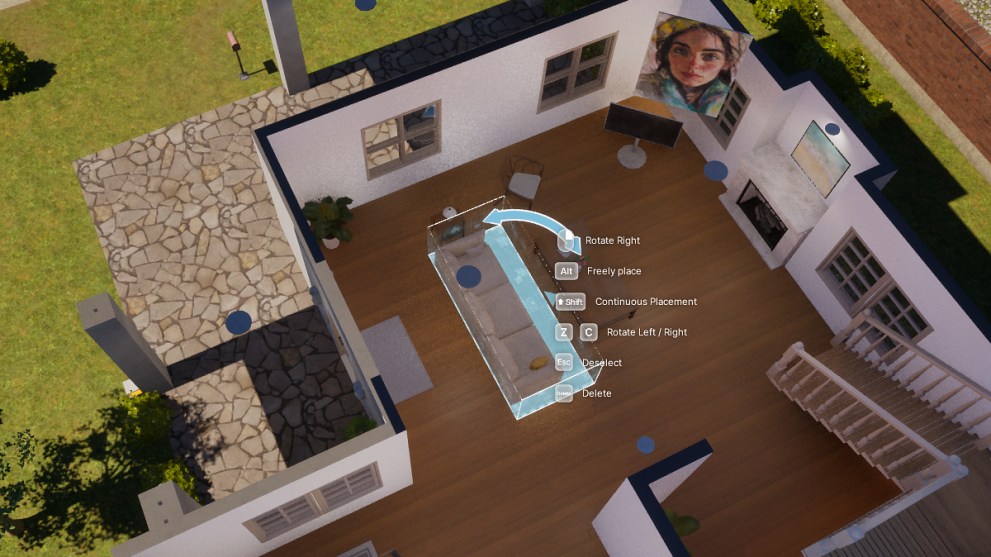
Once at the desired property, enter Build Mode. To do this, select the ‘Build Mode’ icon in the lower right of the screen or press the ‘I’ key. Once in Build Mode, click on the desired object you wish to rotate to select it. From there, you’ll have a few options.
- Using Right-Click: Using the RMB rotates the object 45 degrees clockwise with each click. This is easy when you’re using a mouse, but not so much if you’re using a laptop trackpad.
- Keyboard Shortcuts: Pressing the ‘Z’ key on your keyboard rotates the object 45 degrees counterclockwise, while the ‘C’ key rotates it 45 degrees clockwise.
- Curved Arrows: To have a bit more freedom in rotating your object, you can select and hold the curved arrow to ‘swing’ your object around until you find the placement that suits you. You can see this in the screenshot above.
Advanced Furniture Rotation in inZOI
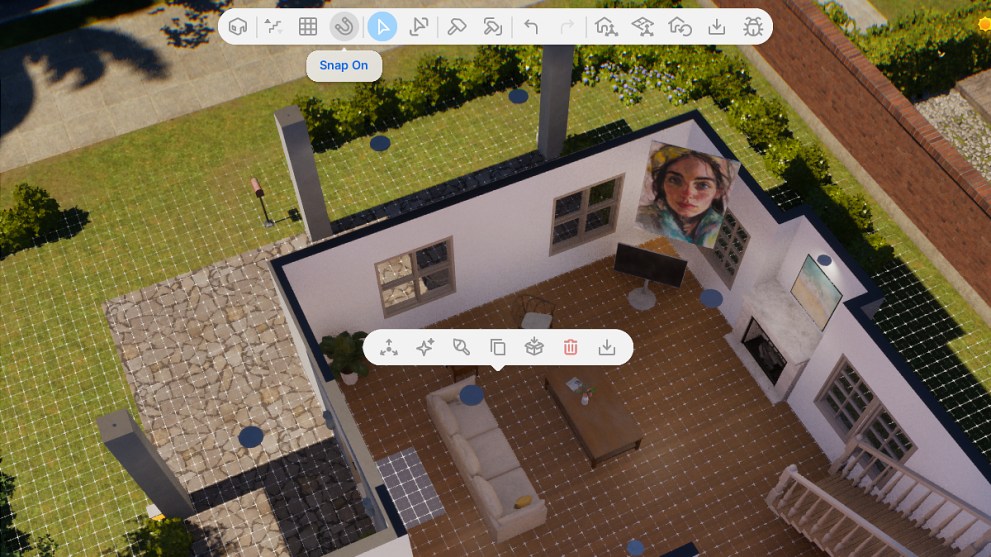
If you’d like a more precise placement or adjustment of your furniture’s position, there are other options you might want to try:
- Fine-Tuning: If you want to ‘free rotate’ an object beyond the default 45-degree increments, press and hold the ‘Alt’ key on your keyboard. This allows you to adjust the object’s angle to any desired position, providing greater flexibility.
- Grid Snapping: Holding the ‘Alt’ key also temporarily disables grid snapping while moving an object. The default in inZOI building is for grid snapping to be enabled, but if you don’t want this feature at all, you can toggle it on and off manually by selecting the magnet icon.
Customization in a life sim like inZOI is personal to each player. Some spend hours making their homes and surroundings as perfect as possible, while some spend no time at all designing their humble abodes.
Now you know how to rotate furniture and objects, you can decide how to spend your time creating your world in inZOI.













Updated: Mar 31, 2025 12:11 pm